ZAP Zeon Academy Pro
Product Academy

Learn how to use ZAP — by role and by task.

Short guides for school owners, accountants, administrators, teachers, parents and students. Useful for demos and day-to-day adoption.

School Administration

How to assign teachers

Link teachers to classes and subjects so academic work is correctly owned.

Administrator School Owner
  1. Open staff or human resource records and confirm the teacher profile exists.
  2. Open class and subject management for the active term.
  3. Assign the teacher to the relevant class and subject.
  4. Save and verify the teacher can see the correct classroom tools.
Screenshot needed

How to assign teachers

Provide teacher assignment / class-subject allocation screenshot (≈1280×720).
Academics & Results

How to manage student results

Enter assessments, apply grading and compile report cards for the term.

Teacher Administrator School Owner
  1. Set up assessments for the term (CA and exams as required).
  2. Enter scores for each subject and class.
  3. Apply grading rules and compile results.
  4. Generate broadsheets or report cards and share with parents.
Screenshot needed

How to manage student results

Provide score entry or result compilation screenshot (≈1280×720).

Finance & Accounting

How to record accounting transactions

Capture fees, payments and day-to-day financial activity in one place.

Accountant School Owner Administrator
  1. Confirm student billing or fee structure for the term.
  2. Record payments received (office or online gateway).
  3. Update debts, discounts or surcharges where needed.
  4. Use ledgers or petty cash tools for other school expenses.
Screenshot needed

How to record accounting transactions

Provide fee payment or ledger entry screenshot (≈1280×720).

Finance & Accounting

How to generate financial reports

Produce account statistics and print-ready reports for management review.

Accountant School Owner
  1. Ensure payments and expenses for the period are up to date.
  2. Open account statistics or reports for the selected term.
  3. Filter by class, branch or date range if available.
  4. Print or export the report for leadership or audit use.
Screenshot needed

How to generate financial reports

Provide financial report / account statistics screenshot (≈1280×720).

Attendance & Security

How to manage attendance

Mark daily presence and review attendance for follow-up with parents.

Teacher Administrator School Owner
  1. Open attendance for the class or school day.
  2. Mark students present, absent or late.
  3. Review attendance summaries for patterns.
  4. Follow up with parents using school communication tools where needed.
Screenshot needed

How to manage attendance

Provide class attendance screen from ZAP (≈1280×720).

ZAP Mobile App

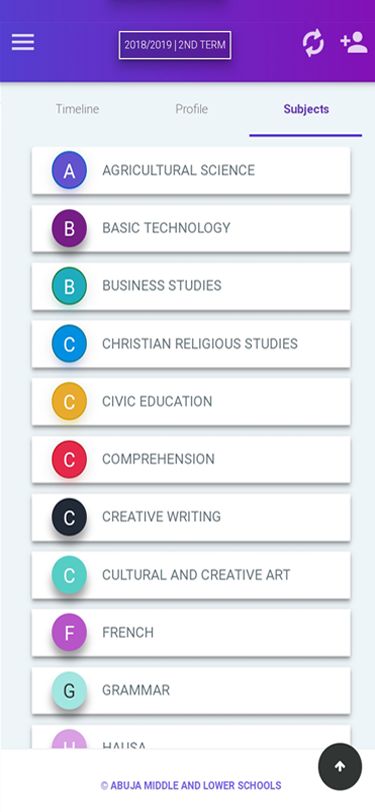
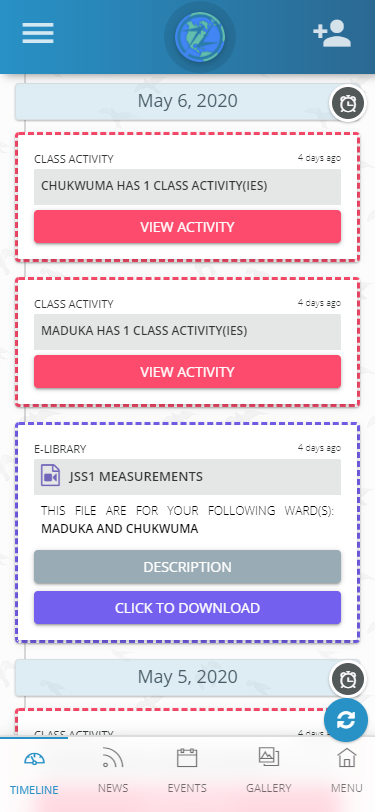
How parents use the mobile app

Access results, payments and school updates from a phone.

Parent
  1. Download the ZAP school app from App Store or Google Play.
  2. Sign in with the credentials provided by the school.
  3. Open results, fee information and notifications.
  4. Switch between children if multiple accounts are linked.
E-Learning

How students access learning materials

Find topics, complete activities and take assessments digitally.

Student Teacher
  1. Sign in on web or mobile as a student.
  2. Open the relevant subject topic.
  3. Download or view study materials attached to the topic.
  4. Complete class activities and assessments as assigned.
Owner Dashboard

How owners review school performance

Use management views to understand finance, enrolment and academics quickly.

School Owner
  1. Sign in with an owner or leadership account.
  2. Open the school overview for the active term.
  3. Review fee collection, enrolment and academic highlights.
  4. Drill into the module that needs attention.
Screenshot needed

How owners review school performance

Provide owner dashboard overview screenshot (≈1280×720).

Need a guided walkthrough?

Book a demo and we will show the workflows your team will use most.